- QuoteLink · Sales Quote Review & Approval
Sales Quote Approval for Dynamics 365
Send a quote from Dynamics 365 and give your customer one place to review the details, open the original PDF, share documents, and approve or decline. QuoteLink brings the response back into your sales workflow.
- From Quote to Response
Keep the Conversation With the Quote
One Link for Each Quote
QuoteLink creates a unique customer URL when Dynamics 365 sends the quote. Customers open the quote directly from their email.
Email Handled for You
Send the customer notification from QuoteLink using the sender and reply address configured for your implementation.
The Original D365 PDF
Show the quote details alongside the original PDF from Dynamics 365. Customers can view and download the document.
A Clear Customer Response
Customers can add comments and supporting files, then approve or decline. The response stays associated with the quote.
Formats for Your Customers
Choose the line detail customers see, assign formats by customer or customer group, and present compatible quotes together.
Connected to Dynamics 365
Keep the quote reference with every response and attachment, so the D365 integration can retrieve and record the results.
- See QuoteLink in Action
Follow a Quote From Send to Response
Watch a quote move from Dynamics 365 to the customer’s inbox, through review and approval, and back to a sales order with the customer’s supporting documents.
A complete quote workflow, demonstrated with fictional customer and order data.
What is QuoteLink?
QuoteLink by FRT Forge is a customer quote review and approval portal for Microsoft Dynamics 365 Finance and Supply Chain Management. It creates unique quote links, emails customers, displays the original D365 PDF, and collects decisions, comments, and files for the connected D365 workflow.
Read the guide to approving Dynamics 365 sales quotes online.
How the quote link works
QuoteLink automatically generates a unique, hard-to-guess HTTPS URL for each quote revision. The link reveals no customer details and expires on the date you set, or when your team withdraws it. Customers can reopen the quote while access remains active, but submit only one final approval or decline.
Follow one quote from Dynamics 365 to the customer and back to the sales team. This demonstration uses fictional customer and order data. Creating a sales order on approval is an optional implementation setting.
Read the video transcript
Here's a sales quote going from Dynamics 365 to the customer's inbox, and back as a sales order.
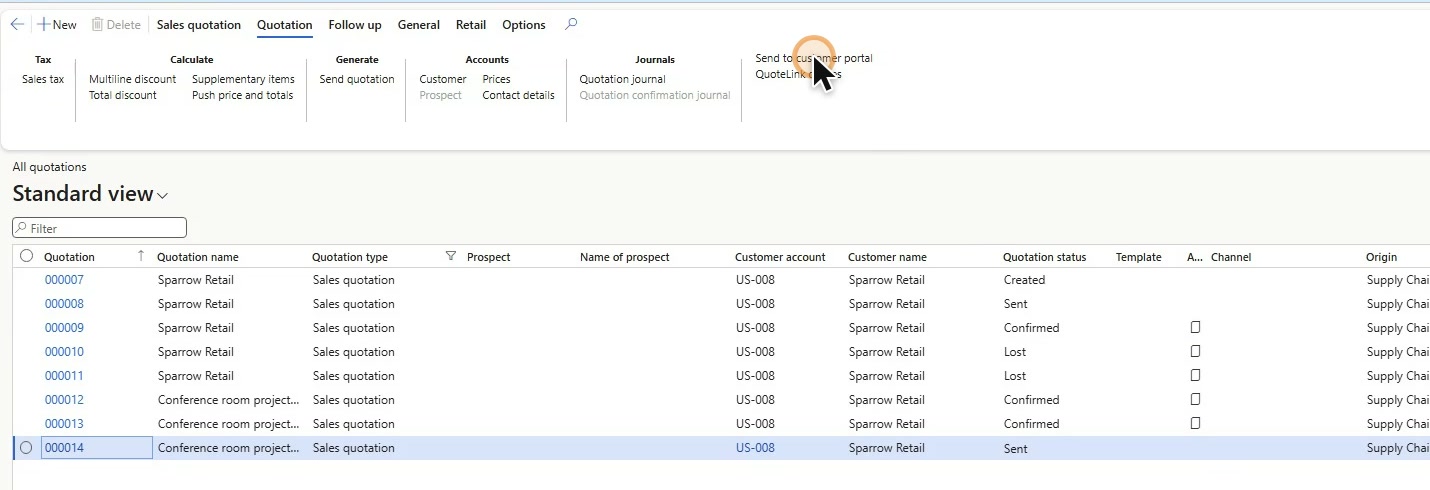
A sales rep finishes a quotation in Dynamics 365, then sends it the usual way.
One more click puts it on QuoteLink. Dynamics 365 renders the original quotation PDF and sends it across.
Done. QuoteLink has the quote, and it has already emailed the customer.
QuoteLink automatically generates a unique, hard-to-guess URL for each quote revision. The connection uses HTTPS, and the link reveals no customer details. Access expires on the date you set, or when your team withdraws it. Customers can reopen the quote to review it, but submit only one final approval or decline.
The customer gets an email with a private link. No account, and no password to set up.
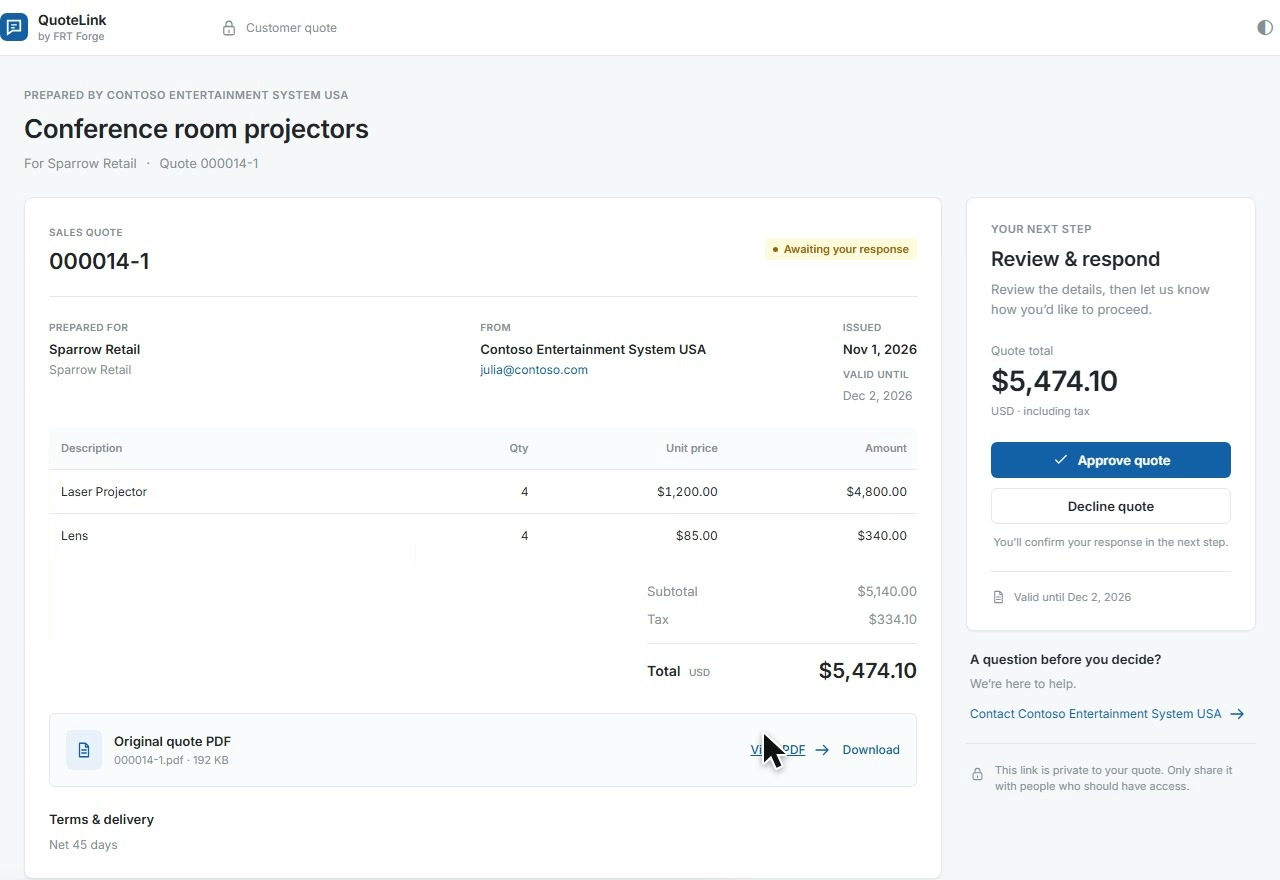
The link opens their quote: the lines, the tax, and the total.
And this is the original PDF from Dynamics 365, ready to read or download.
They can leave a note for the sales team,
and attach a document, like their purchase order.
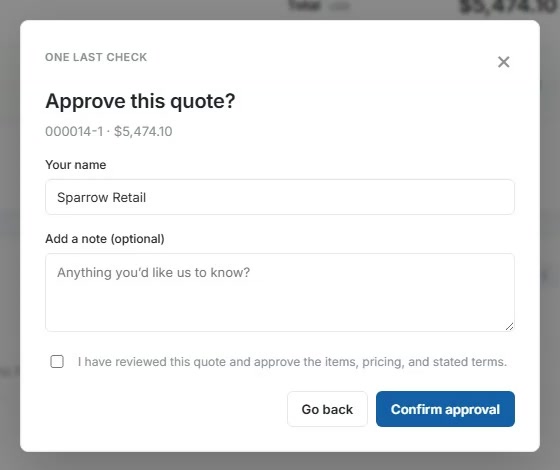
When they're happy, they approve. One last check, and it's recorded.
That's the customer's part finished.
Back in Dynamics 365, a scheduled job picks up the response. The quotation is now confirmed.
Every response is logged: the comment, the file, and the decision, each one acknowledged back to the portal.
With automatic confirmation enabled, the approved quotation becomes a sales order.
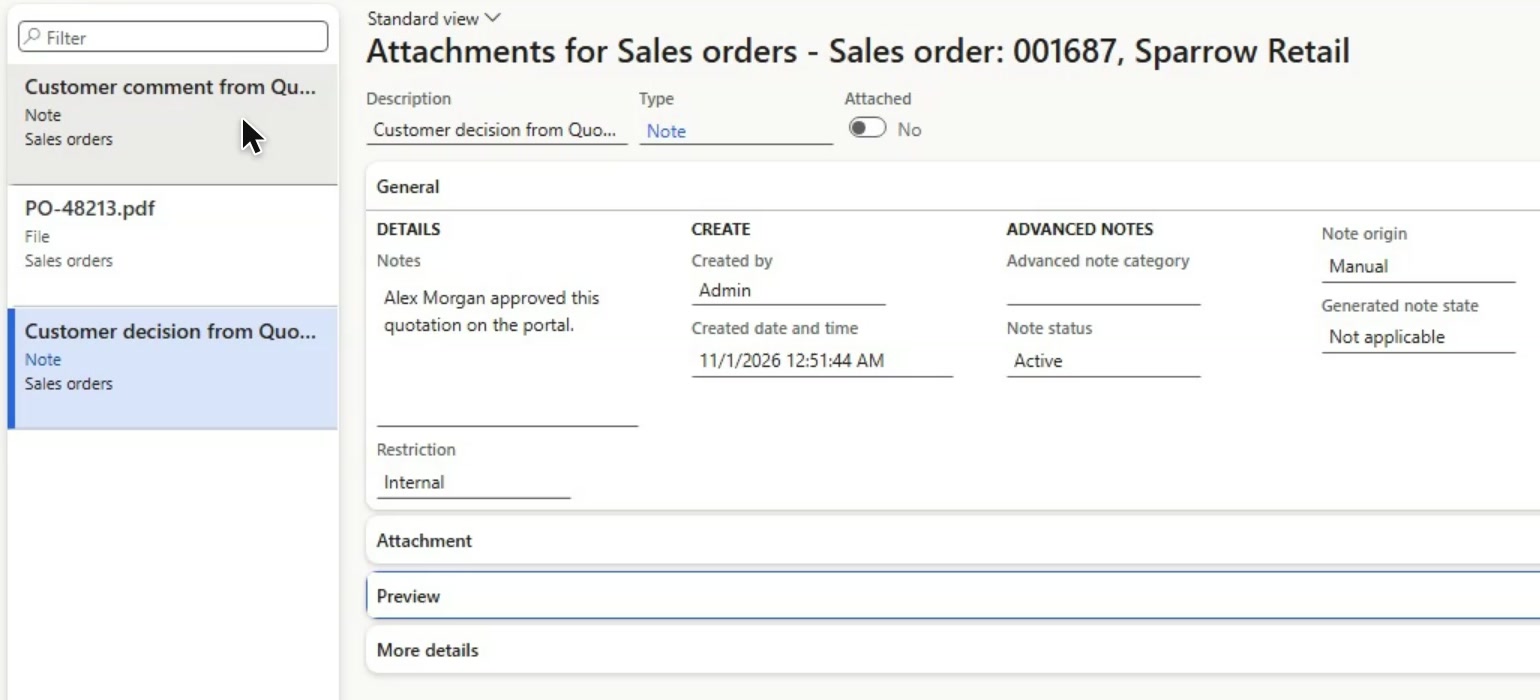
It carries everything the customer sent: their note, their approval, and their purchase order.
QuoteLink. Send the quote. Get the answer. Keep it in Dynamics 365.
- The QuoteLink Workflow
Send. Review. Respond. Follow Through.
Give customers a straightforward review experience while keeping your team connected to the original Dynamics 365 quote.
- 01 / SEND
Let the Quote Start the Conversation
Send the quote data, customer email, and original PDF from Dynamics 365. QuoteLink creates the customer link and sends the email.
- Create the link automatically
- Keep the original quote reference
- Use your configured sender and reply address
- 02 / REVIEW
Put the Details and PDF in One Place
Your customer opens the email link to a page dedicated to that quote. They can review the line items and open the original PDF before deciding.
- Open directly from the customer email
- Review the quote details
- View or download the original PDF
- 03 / RESPOND
Capture More Than a Yes or No
Customers can share a comment and attach supporting documents before submitting their decision. Approval or decline is recorded with the response.
- Add comments before deciding
- Attach supporting documents
- Confirm approval or decline
- 04 / FOLLOW THROUGH
Bring the Decision Back to Dynamics 365
Keep the customer’s approval, comments, and files with the original quote. The demonstrated workflow continues to a sales order, carrying the supporting documents forward.
- Record the customer response in D365
- Keep comments and files with the quote
- Continue to an order when configured
Keep Dynamics 365 at the Center
Dynamics 365 supplies the quote data, customer email, and original PDF. QuoteLink manages the customer URL, email, and review experience.
The integration records customer decisions, comments, and attachments against the original quote. Sales-order creation on approval is optional: the demonstration shows that configured confirmation path, with the customer’s supporting documents carried forward.
- Your Questions, Answered
Explore QuoteLink for Your Sales Team
Bring a representative quote and your customer review process. Request a walkthrough.
What does QuoteLink handle?
QuoteLink creates the customer link, emails the customer, displays quote details and the original PDF, and records comments, attachments, approvals, and declines. Dynamics 365 supplies the quote and retrieves the customer response through the integration.
Do customers need a Microsoft account?
Customers open their quote through its private link without signing into the administrator portal. Anyone holding that link can access the quote until it expires or is withdrawn. Administrators use Microsoft sign-in.
Does QuoteLink replace the PDF from Dynamics 365?
No. The original quote PDF comes from Dynamics 365 and stays available to the customer. QuoteLink templates control the web page presentation while preserving the source PDF.
Can customers add files and comments?
Yes. Customers can add comments and supporting documents while the quote is open, before submitting their approval or decline. QuoteLink keeps those items with the quote and makes them available to the Dynamics 365 integration.
Can we use different formats or combine quotes?
Yes. Set the visible line detail, assign templates to customers or customer groups, and combine compatible source quotes into one customer review. Each source keeps its original PDF and Dynamics 365 reference.
Does approving a quote automatically create a sales order?
That depends on your implementation settings. Creating a sales order on approval is optional and off by default. The demonstration shows a configured confirmation workflow; your team controls how an approved quotation progresses in Dynamics 365.
How do we discuss setup and pricing?
Request a walkthrough to review your Dynamics 365 quote process, email sender, customer templates, and response handling. We will discuss the implementation and pricing with your team.
- Make the Next Quote Easier to Answer
See QuoteLink With Your Sales Workflow
Show us how your team sends quotes and follows up today. We’ll walk through the customer experience and the connection back to Dynamics 365.