- LabelLink · Label Printing for Business Central
Direct Label Printing for Business Central
Get shipping labels from SHP in Business Central to the printer at your dock. LabelLink connects the cloud to your local label printer through a small dedicated box—without keeping a warehouse PC running or routing labels through a separate print service.
- From Label to Printer
Built for the Shipping Dock
Free the Dock From a PC
Use a small dedicated LabelLink box beside the printer. Keep label printing independent of a warehouse desktop.
Keep the Print Route Direct
Labels travel directly from your Business Central environment to the local printer through LabelLink, without a separate cloud print relay.
Connect From Inside Your Warehouse
LabelLink starts the connection to Business Central from your warehouse, so you don’t need to allow incoming internet connections.
Check Labels Before Sending
LabelLink checks label instructions before sending them and blocks instructions that change saved printer settings.
Keep Printing in the Shipping Flow
Choose the printer by shipment location, cancel waiting jobs when labels are voided, and manage print jobs in Business Central.
Keep Printing Visible in Business Central
Review connection activity, printer status, and print-job results. Retry or cancel jobs from the same system your shipping team uses.
- How LabelLink Connects
From Business Central to the Label at Your Dock
SHP queues the shipping label in Business Central. LabelLink collects and checks the job, then sends it to the supported local printer configured for that location.
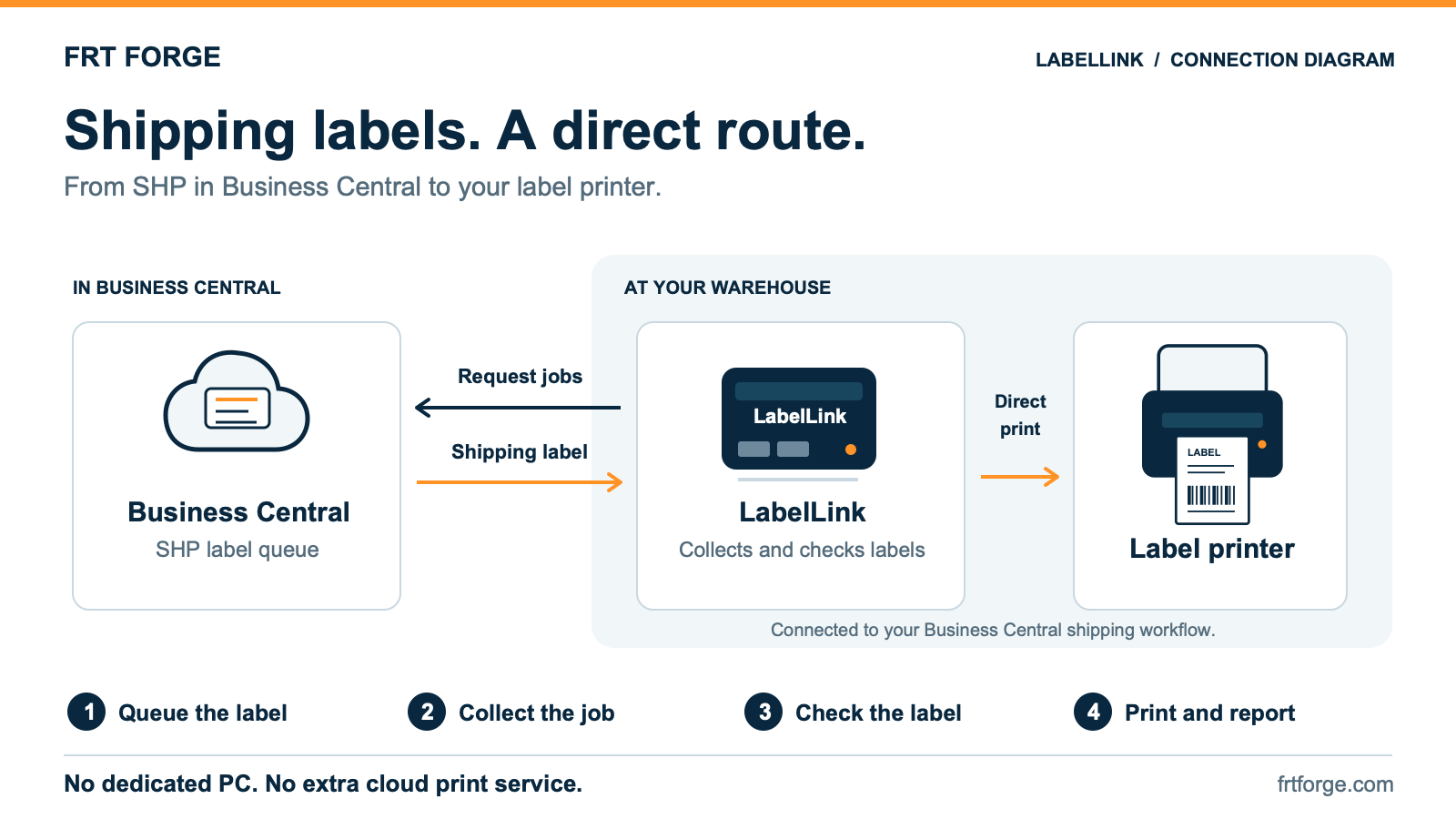
LabelLink starts the connection from your warehouse and keeps print-job results visible in Business Central.
What Is LabelLink?
LabelLink by FRT Forge connects shipping labels from SHP in Microsoft Dynamics 365 Business Central online to supported network label printers at your warehouse.
Use a dedicated LabelLink box or a compatible always-on device. LabelLink handles SHP shipping labels and reports print-job results back to Business Central.
- The LabelLink Workflow
Ship. Collect. Check. Print.
Connect the carrier label to the local printer, with the job and its status kept in Business Central.
- 01 / SHIP
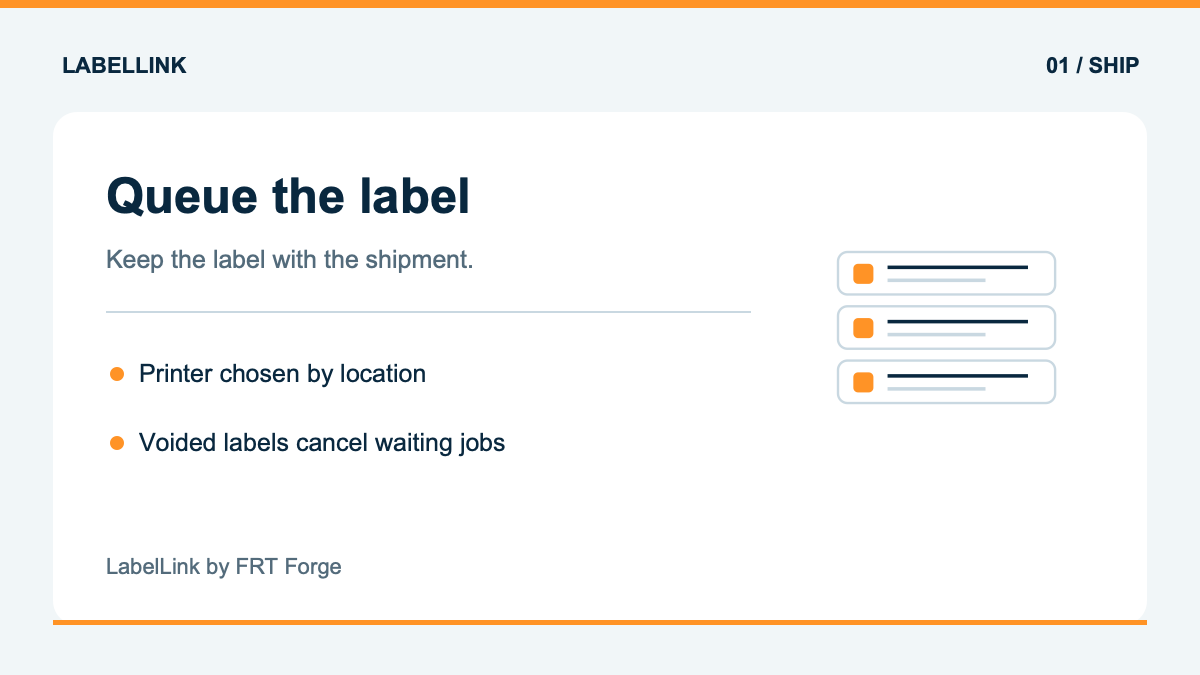
Queue the Label Where It Is Created
SHP obtains the carrier label and queues a print job for the printer assigned to the shipment’s location. Keep the label and the printing task together in Business Central.
- Printer selected by shipment location
- Label retained with the print job
- Voiding a label cancels its waiting job
- 02 / COLLECT
Bring the Job to Your Warehouse
LabelLink collects the label from Business Central and directs it to the printer configured for the location. Your team keeps control of where labels are sent.
- Connection started from your warehouse
- Direct connection to Business Central
- Labels sent to configured printers
- 03 / CHECK
Check Each Label Before Printing
LabelLink checks label instructions before sending them and blocks instructions that change saved printer settings. Label content is not saved on the local device or included in its logs.
- Labels checked before sending
- No local storage of label content
- Job details available for troubleshooting
- 04 / PRINT
Send the Label and Report the Result
LabelLink sends the checked label to the configured printer and reports the job result to Business Central. Your team can review the print log and use Retry or Cancel when a job needs attention.
- Direct printing to supported label printers
- Reported print-job results
- Connection activity and printer status in Business Central
A Direct Printing Route for SHP
LabelLink works with Freight Forge SHP for Business Central online. It connects your shipping-label queue to supported local label printers, keeping printing close to the shipping workflow.
We’ll help your team choose the right deployment approach for your locations and printing needs, with a direct connection between Business Central and the shipping dock.
- Your Questions, Answered
Explore LabelLink for Your Warehouse
Tell us about your printing setup, locations, and shipping workflow. We’ll help you review the fit and setup.
Which Business Central solution does LabelLink work with?
LabelLink prints shipping labels created by Freight Forge SHP in Microsoft Dynamics 365 Business Central online. It is designed for shipping labels rather than general document printing.
Which label printers are supported?
LabelLink works with supported network label printers. Share your current printer setup with us so we can confirm compatibility for your site.
Do we need a Windows PC at the dock?
No. A dedicated LabelLink box handles the connection at the warehouse. Sites that prefer existing hardware can use a compatible always-on device.
Do labels pass through a separate print service?
No separate cloud print relay is part of the LabelLink route. LabelLink collects labels from your Business Central environment and sends them to your configured local printer. Label content is not saved on the local device or included in its logs.
Does LabelLink need incoming internet access to our warehouse?
No. LabelLink starts the connection from your warehouse to Business Central. It also needs a local network connection to your supported label printer.
How do we track jobs and handle failures?
Business Central keeps the print-job queue and log, including reported job results. Your team can retry or cancel jobs and review connection activity and printer status from the same application.
How do we discuss setup and pricing?
Request a walkthrough with your printing setup, warehouse locations, and SHP shipping flow. We’ll review the deployment approach and discuss pricing with your team.
- Connect the Cloud to Your Shipping Dock
See LabelLink With Your Printing Workflow
Show us how labels reach your printers today. We’ll walk through a direct printing route built around SHP and Business Central.