How Customers Can Approve Dynamics 365 Sales Quotes Online
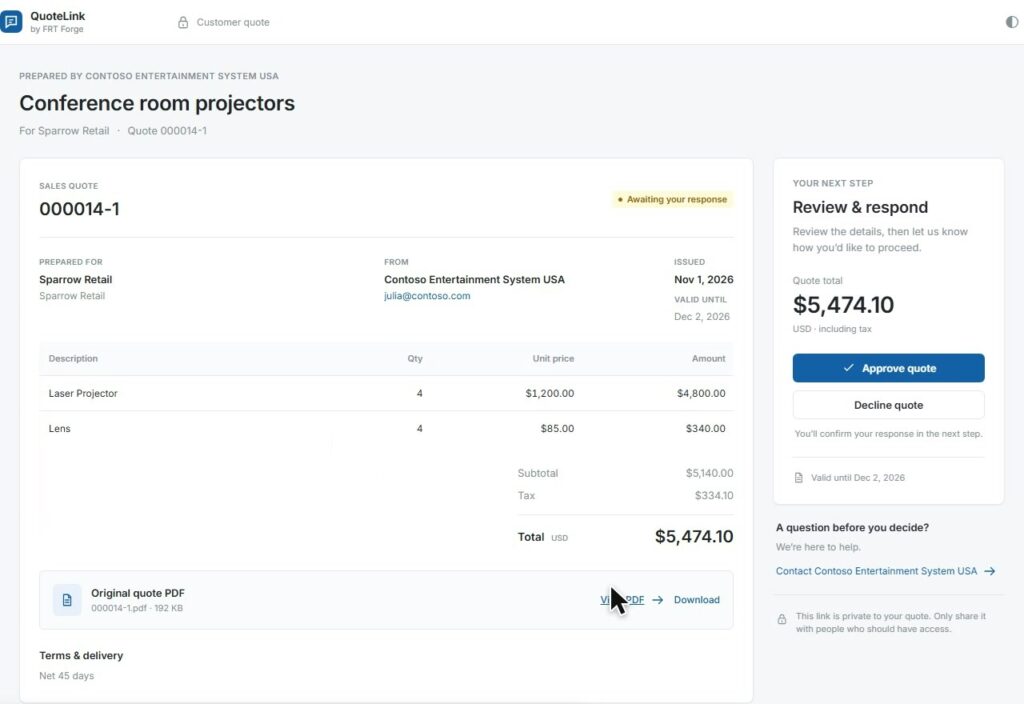
Customers can approve Dynamics 365 sales quotes online through a quote portal connected to D365. With QuoteLink by FRT Forge, Dynamics 365 supplies the quote data, customer email address, and original PDF. QuoteLink creates a unique customer URL, sends the email, and records the customer’s response. The D365 integration then brings the decision, comments, and files back to the original quotation.
This guide follows a Microsoft Dynamics 365 Finance and Supply Chain Management workflow. It gives the customer one place to review the offer and respond, while keeping Dynamics 365 at the center of the sales process. The walkthrough below shows that process, including an optional path from an approved quotation to a sales order.
Watch the quote approval workflow
Read the full video transcript.
Five steps from quotation to customer response
1. Send the quotation from Dynamics 365
The sales team prepares the quotation in Dynamics 365. The integration supplies QuoteLink with the structured line items, customer email address, quote reference, expiry, and original D365-generated PDF. The quotation remains identifiable by its source reference and legal entity throughout the process.
2. Create the customer link and send the email
QuoteLink creates the customer page URL and handles the email notification. D365 does not have to construct the link or send that notification separately. The email sender and reply address are configured for the implementation. The original PDF stays behind the customer link, where it can be reviewed alongside the quote details.
Each published quote revision receives an automatically generated, hard-to-guess HTTPS link. The URL contains no customer name, email address, or quote number. It expires at the configured time or when your team withdraws it. Customers can return while the link is active, but record only one final approval or decline.
3. Review the details and original PDF
The customer opens the link to see the quote’s lines, tax, and total, together with the original PDF from Dynamics 365. They can read or download that document before deciding. Web templates can vary the amount of line detail shown; they do not rewrite the PDF. Information hidden on the web page may still appear in the original document.
4. Add supporting information and approve or decline
The customer can leave comments and upload supporting documents, such as a purchase order, before submitting a decision. Approval includes a confirmation step. Comments and uploads should be completed before approval or decline, because the customer page stops accepting changes after a final decision.
5. Return the response to the sales workflow
The D365 integration retrieves the decision, comments, and files using the original quote reference. In the demonstration, a scheduled job records the responses and acknowledges them back to QuoteLink. Each action retains its own transfer status, so recording an approval and transferring a supporting file are distinct pieces of work.
What does D365 handle, and what does QuoteLink handle?
| Responsibility | System |
|---|---|
| Quotation, customer details, and original PDF | Dynamics 365 supplies the source information. |
| Unique customer URL and notification email | QuoteLink creates the link and sends the notification. |
| Online review, comments, files, and decision | QuoteLink provides the customer experience and records responses. |
| Updating the quotation and attaching documents | The D365 integration writes the responses to the correct records. |
| Confirmation and sales-order creation | The configured D365 workflow determines the next action. |
Keep the approval and its documents together
An approval is more useful when the sales team can also find the customer’s comments and purchase order. QuoteLink retains the quote reference with those responses so the integration can attach them to the correct D365 quotation.
The demonstration also carries those documents onto the resulting sales order. That continuation belongs to the configured integration; it should not be assumed to happen simply because a customer clicked Approve. Automatic confirmation is optional and off by default. Your implementation determines whether an approved quote waits for a sales representative or proceeds through confirmation.
Questions about online D365 quote approval
Does the customer need a Microsoft account?
No. The customer opens a unique link without creating an account. Possession of that link grants access, so it should be shared only with the intended reviewers. Links expire and can be withdrawn. This access method is not identity verification or a certified electronic signature. Administrator access is separate and uses Microsoft Entra sign-in.
Can one customer page contain multiple D365 quotes?
Yes. QuoteLink can present compatible source quotes together while retaining their original PDFs and references. The quotes must share the same customer account, legal entity, and currency. The customer’s decision applies to the package as a whole; partial acceptance is not supported.
What happens when the quotation changes?
A published quote is a snapshot. Send a new revision when the offer changes and withdraw the earlier link when appropriate. Changing a template does not silently change a quote that the customer has already received.
Plan your customer quote review process
Start with the information customers need to see, the documents they return, and what your team should do after approval. Explore QuoteLink or request a walkthrough using a representative quotation. For the delivery stage after an order is created, see Dispatch & Deliver.