- Plan & Maintain · Maintenance Planning
Maintenance Planning for Dynamics 365
Turn maintenance demand into a clear plan. Bring the backlog, technician schedule, future skill requirements, and capacity outlook into one visual workspace inside Microsoft Dynamics 365 Supply Chain Management.
- How It Helps
Give Your Planners a Clearer View of the Work
Focus on the Right Work
Narrow the backlog by plant, maintenance area, or machine while keeping technician commitments in view.
See the Day and the Week
Move between daily detail and the weekly outlook. Review existing assignments beside the work waiting to be scheduled.
Keep Bookings in Dynamics 365
Review an assignment and book through native scheduling. Confirm the technician and dates on the original work order.
Move Ready Jobs Forward Together
Review several ready jobs in one place and see the booking result for each one.
Plan Skills Before Assigning People
Capture future maintenance requirements by skill and hours, leaving named technicians unassigned until the timing is right.
Understand the Capacity Outlook
Compare maintenance demand, calendar capacity, and scheduled load. Trace the totals back to the contributing work.
- See Plan & Maintain in Action
From Today’s Assignments to Tomorrow’s Skill Demand
Watch the 1:57 overview: focus the backlog, confirm native bookings, plan future skill requirements, and inspect the capacity behind the plan.
One planning journey, connected to your Dynamics 365 maintenance records.
Read the video transcript
Maintenance work keeps coming. The challenge is turning the backlog into a plan your team can act on.
Plan & Maintain by FRT Forge. Build on standard Asset Management in Microsoft Dynamics 365 Supply Chain Management, with one visual planning workspace.
Focus by plant, maintenance area, or machine. Narrow the work while keeping technician commitments in view. Less searching. More context for the next decision.
See the week. Inspect the day. Find a technician and review existing assignments, with the work waiting to be scheduled right there.
Drag a job to a technician, review the assignment, and book. Dynamics uses its native scheduling rules. The confirmed technician and dates appear on the original work order. Your plan stays connected to the operational record.
Move several ready jobs forward in one review. See the result for each one, then return to an updated team schedule.
Look beyond today's backlog. Bring future preventive maintenance into the same workspace, with the same location and machine focus.
Plan the skills before you choose the people. Eight hours of welding. Four hours of electrical work. Capture future requirements months ahead, without reserving a technician too early.
Compare maintenance demand with calendar capacity and scheduled load. Drill into the work behind the totals, so your team can prepare, rebalance priorities, and plan the support it needs.
Today's assignments. Tomorrow's skill demand. One connected planning journey inside Dynamics 365. Plan & Maintain by FRT Forge. Book your demo today.
Full Product Walkthrough
Plan maintenance across a busy operation
Follow a planner across plants, technician schedules, urgent repairs, and future preventive maintenance. See how Plan & Maintain connects today's assignments with future skill requirements and capacity planning inside Microsoft Dynamics 365 Supply Chain Management.
Read the full walkthrough transcript
Plan & Maintain. A busy operation. One clear plan.
It is Monday morning at Forge Manufacturing. Three plants are running, production equipment needs attention, and the maintenance team already has a full week ahead. Plan and Maintain by FRT Forge gives the planner a working view of that operation, directly inside Microsoft Dynamics 365. We start with the schedule, where the decisions happen.
This demonstration uses two thousand four hundred native assets and twenty-four named maintenance technicians. The work is spread across working days and across several weeks. Each visible assignment is a real native booking, tied to a person and an operational work order. This is the context for planning the next job.
Let us take responsibility for Northworks. Select the plant and include its child locations, then bring its maintenance team into focus. Now we can work with the plant's demand and its eight technicians. Repairs, inspections and scheduled service already occupy most of each day, while some capacity remains for the work that inevitably arrives.
Read across the week. The schedule continues through Friday; it is not a collection of jobs waiting on Monday. The planner can inspect an assignment to understand its work-order reference and time window. This gives the team a practical starting point for the morning conversation: what is committed, what still needs attention, and where can the next task fit?
Move to the next week, then the week after. The operation does not stop when this week's backlog is cleared. Planned maintenance and reliability work continue, and the same technicians have future commitments. Looking ahead lets the planner prepare the next wave of work without losing the schedule already agreed for today.
Riverside has its own equipment, work orders and maintenance team. Change the location and worker group, and the same planning process follows us. A large operation becomes manageable through these focused views. We do not need to put every asset and every person on the screen at once to keep control of the work.
Back at Northworks, the production team is concerned about extrusion. Narrow the work to that functional location. The jobs become specific to the area, while the selected technicians' other commitments remain visible. The planner can focus the maintenance problem without mistaking work elsewhere for available time.
Choose the line-maintenance team. This is our work cell: a practical group of technicians responsible for the equipment. Location selects the work and the worker group selects the people. Those choices work together, so a planner can bring the right team to an area without losing sight of that team's schedule.
Switch to the day view. The longer jobs are now easy to read, and we can see where the work sits within the day. An inspection, a repair and a service visit have different demands on the team. Use the detailed view when the decision is about an actual assignment and an actual time.
Search for Maya and open the detailed schedule. Her work-order references, scheduled intervals and hours are visible together. We can inspect her existing commitments before adding another job. That is the difference between putting a name on a list and making a scheduling decision with the person's workload in view.
A vibration report has come in for one of the extrusion machines. Load that exact asset to inspect its open work and upcoming maintenance. The equipment stays identifiable throughout the journey. The planner can understand what is already known before deciding how to respond to the new issue.
Create a corrective work order in the standard Dynamics 365 form. Record the affected asset, the maintenance job and its expected work window. We are creating the operational record the maintenance team will use, within the same system that owns the equipment and the maintenance history.
Return to Plan and Maintain and refresh. The new job is now part of the focused backlog. We can see the work waiting to be assigned alongside the people who could take it. There is no separate spreadsheet to update before the planner can act.
Choose the day and physically drag the job onto Maya's lane. The board carries the selected work, technician and requested start into a booking review. This makes the assignment quick to prepare while keeping a deliberate confirmation before the native schedule changes.
Review the assignment and book the ready work. Dynamics 365 evaluates the job using its native forecast and scheduling rules. The result tells us what was actually booked. The requested drop time starts the scheduling decision; the confirmed native dates are what the planner works from.
Open the original work order again. Maya and the confirmed scheduled dates now appear on the native maintenance job. The visual planning decision has reached the operational record. Everyone who works from that order can see the result inside Dynamics 365.
Back on the board, inspect the updated schedule in the context of the rest of the team. One urgent job has been handled without losing sight of the committed work around it. The planner can keep moving through the backlog with the same focused process.
Some work can be organized together. Select two ready jobs, open the booking review and choose a technician for each. Each work order keeps its own identity. This helps the planner move through a busy backlog while retaining a clear decision for every job.
Book the ready jobs and inspect their individual results. Confirmed work is identified separately, so the planner knows what succeeded and what still needs attention. That visibility matters when there are many jobs to organize: the next action follows the actual outcome, not an assumption that an entire batch must have succeeded.
Reactive repairs are only part of this operation. Open preventive maintenance to see demand generated from the native maintenance plans. Some occurrences have become work orders; others remain future planned work. The planner can distinguish those states and prepare the next maintenance cycle before it becomes urgent.
Narrow to a particular machine and extend the horizon. The view connects today's operational work with the coming services on that equipment. For a large asset estate, this is how the planning conversation stays concrete: which asset, which service, and when will the team need to be ready?
For a service six months away, we know the skills before we know the individual technicians. Plan eight hours of welding and four hours of electrical work against the maintenance occurrence. The requirement becomes visible for planning without prematurely reserving a particular person.
The saved requirement now carries twelve hours of specialist work, with no named technician reservation. As the date approaches, the team can revisit that requirement and refine the plan. Near-term assignments and longer-term preparation can use different levels of detail in the same workspace.
Open the forecast to inspect scheduled load, selected maintenance demand and native calendar capacity over the coming months. A busy operation needs both views: a workable daily schedule and enough warning of the work ahead. The forecast helps the planner decide where to investigate, rebalance priorities or prepare additional support.
Drill into a period. We can inspect the contributing work orders and the capacity for each technician. These measures remain separate because open work-order demand can already contain scheduled work. The planner can understand the source of the workload without adding the same hours twice.
The skill outlook shows the welding and electrical requirements entered for the future service. Open a contribution and return to its maintenance occurrence. The planning discussion now has an identifiable asset, a service date and a specific skill requirement behind it.
Return to the working board. Three plants, thousands of assets, and a maintenance workforce with commitments across the weeks ahead. Plan and Maintain by FRT Forge helps the planner focus the work, inspect the people, make the next assignment and prepare for future demand. A busy operation becomes a sequence of clear decisions, all inside Dynamics 365.
Plan your next move with FRT Forge.
- The Planning Workflow
Focus. Schedule. Prepare.
Keep near-term assignments and longer-term resource decisions in the same planning context.
- 01 / FOCUS
Start With the Work That Matters
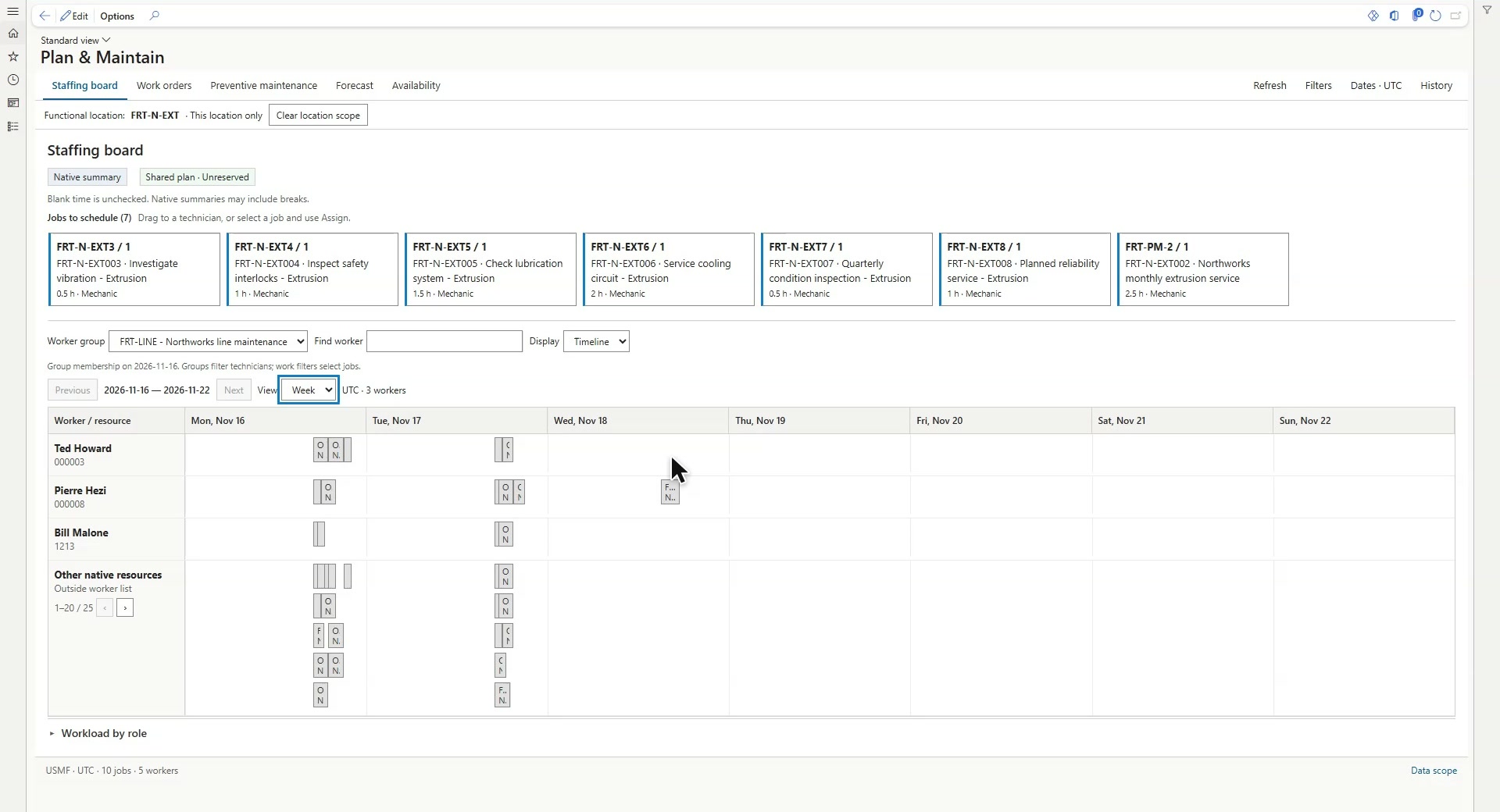
Select a plant, maintenance area, or machine. Choose the technician team independently, so you can narrow the work without losing the commitments that shape the schedule.
- Scope the work by location or asset
- Keep existing technician assignments visible
- Move between the week and the day
- 02 / SCHEDULE
Turn the Plan Into a Confirmed Booking
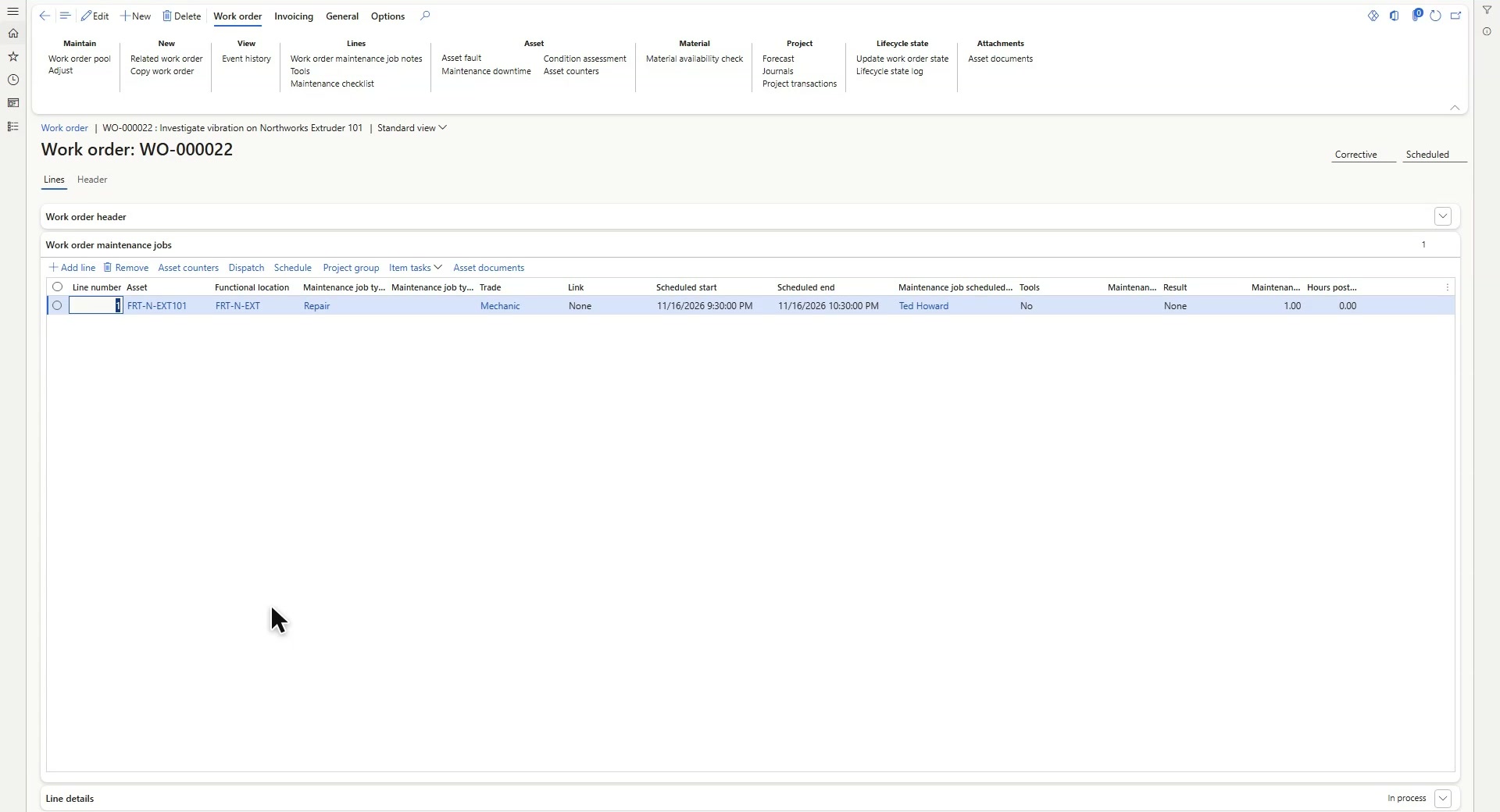
Drag a job to a technician and review the assignment. Dynamics 365 applies its native scheduling rules, then the confirmed technician and scheduled dates appear on the original work order.
- Review before booking
- Handle several ready jobs together
- See the result for each work order
- 03 / PREPARE
Know the Skills You’ll Need
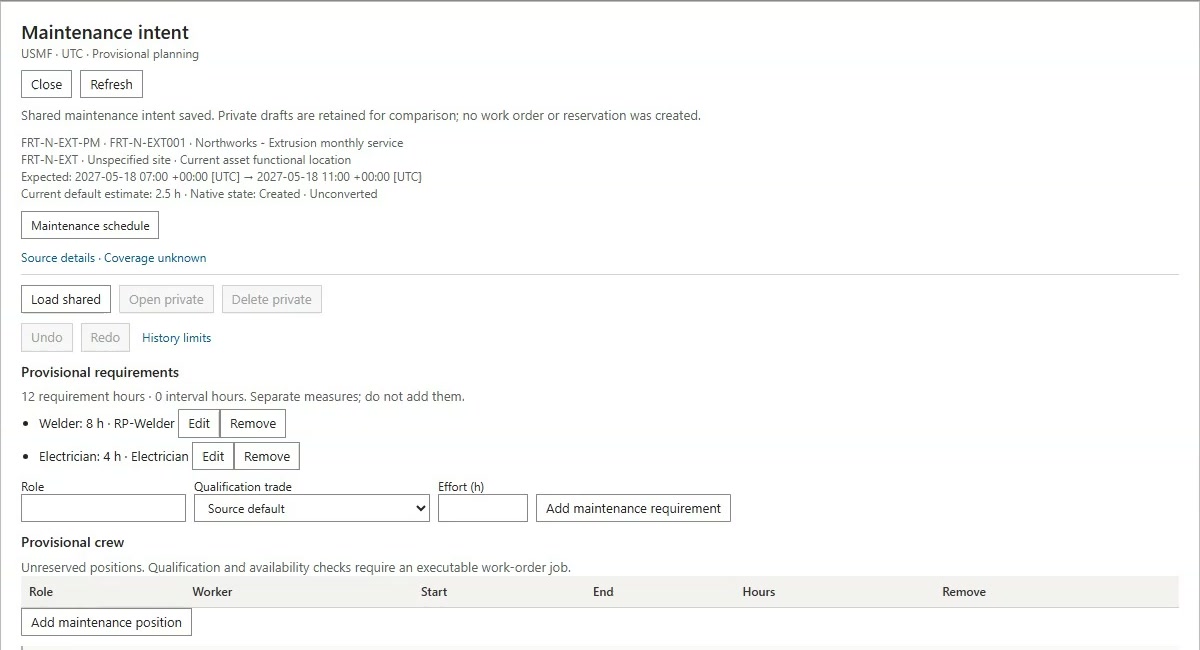
Carry the same location and machine focus into future preventive maintenance. Record the skill hours needed for an upcoming occurrence before deciding which technicians will do the work.
- Plan against native maintenance occurrences
- Capture requirements such as welding and electrical hours
- Keep future skill demand separate from named bookings
- 04 / REVIEW
See the Work Behind the Numbers
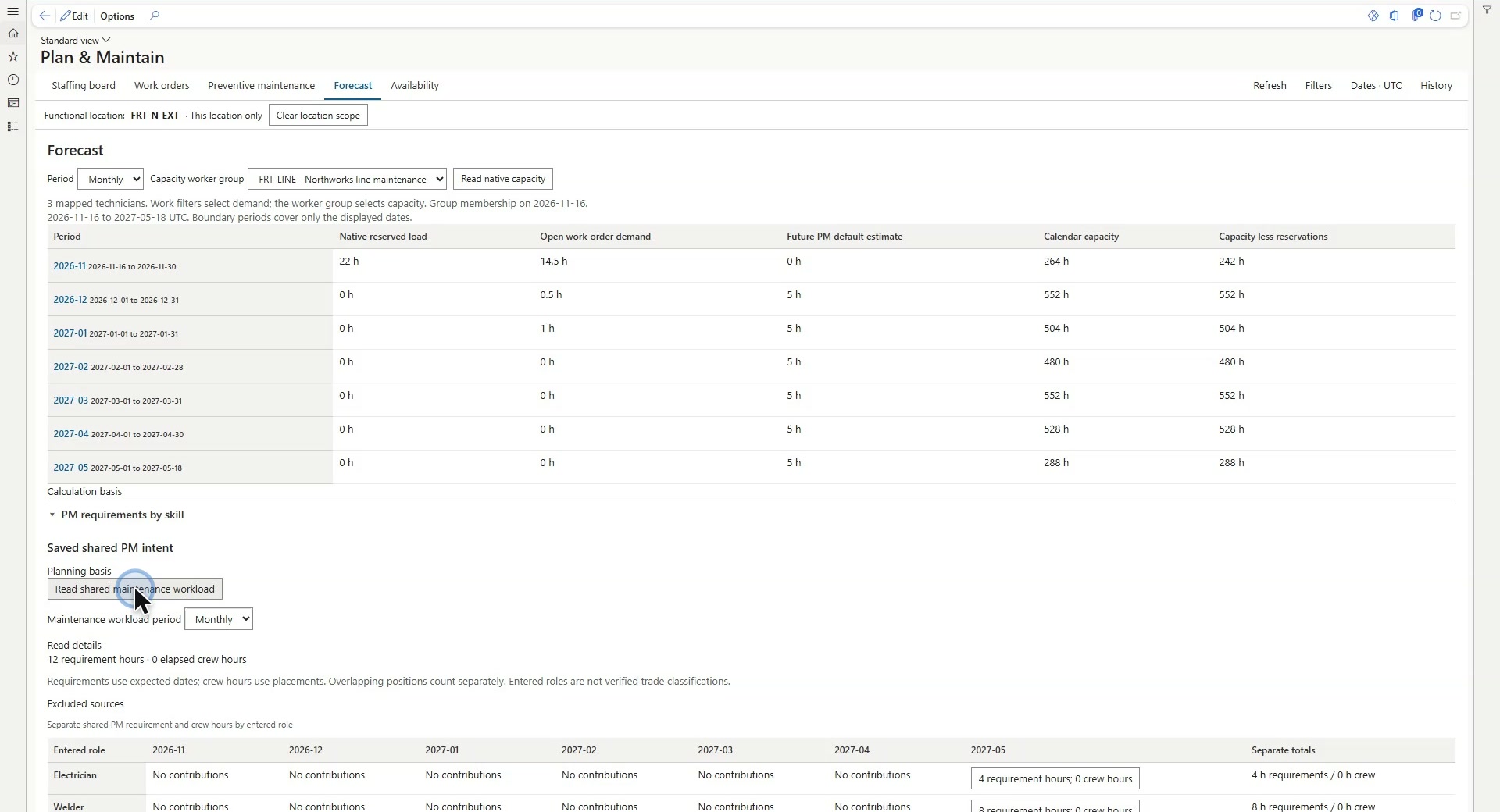
Compare the maintenance outlook with calendar capacity and existing reservations. Open a period to inspect the contributing work and technician capacity, then follow future skill requirements back to their maintenance occurrence.
- Review demand and capacity in the same workspace
- Drill into the contributing work
- Prepare priorities and discuss additional support
Build on the Asset Management You Already Use
Plan & Maintain extends the planning experience around standard Dynamics 365 Asset Management. Your maintenance plans, work orders, worker calendars, and native scheduling remain the foundation.
Give planners a connected way to focus demand, review assignments, capture future skill requirements, and investigate capacity. Keep the planning decision connected to the operational record.
- Your Questions, Answered
Plan & Maintain FAQs
Bring your maintenance workflow and planning priorities. Talk with our team about Plan & Maintain.
Which Dynamics 365 product is Plan & Maintain built for?
Plan & Maintain is built for Asset Management in Microsoft Dynamics 365 Supply Chain Management. It brings maintenance work, technician schedules, future skill requirements, and the capacity outlook into one visual planning workspace.
What does Plan & Maintain add to standard Asset Management?
It adds a connected planning experience around your native maintenance records: focused work queues, a technician board, assignment review and booking results, future skill requirements, and demand-to-capacity drilldowns in the same workspace.
Do assignments update the original work order?
Yes. After the planner reviews and books an assignment, Dynamics 365 uses its native scheduling process. The confirmed technician and scheduled dates are visible on the original work order.
Can planners book several jobs together?
Yes. Select ready jobs, review the technician assignment for each, and book them together. The results identify successful bookings and work that still needs attention.
Can we plan future skills before choosing technicians?
Yes. Record skill and hour requirements against a future maintenance occurrence, such as welding or electrical work, without creating a named technician reservation. Review those requirements as the work approaches.
Can we trace the capacity outlook back to the work?
Yes. Review selected maintenance demand alongside calendar capacity and scheduled load. Open a period to inspect the contributing work and technician capacity, or follow a future skill requirement back to its maintenance occurrence.
How do we discuss setup and pricing?
Book a demo to review your asset locations, maintenance plans, technician groups, and scheduling process. We’ll discuss the implementation and pricing with your team.
- Plan the Work. Prepare Your People.
See Plan & Maintain With Your Maintenance Workflow
Show us how your team manages the backlog and prepares for upcoming maintenance. We’ll walk through a connected planning experience built around Dynamics 365 Asset Management.