Introducing LabelLink: Print Business Central Shipping Labels Without a PC
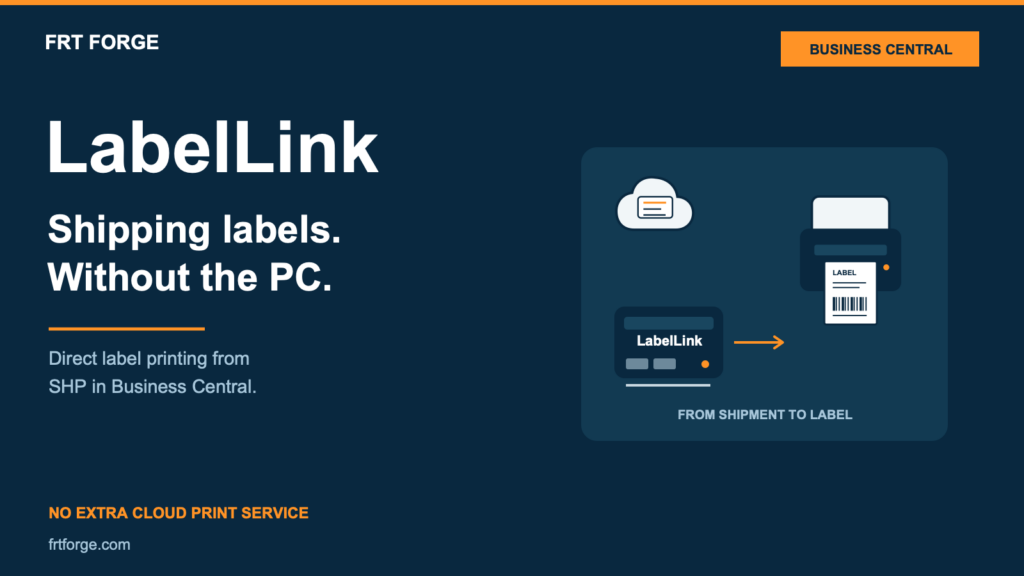
Your shipping label should reach the dock without needing a warehouse PC to stay running. LabelLink by FRT Forge connects shipping labels created by SHP in Microsoft Dynamics 365 Business Central online to configured local label printers.
A small dedicated box collects print jobs from Business Central, checks the labels, sends them to the configured printer, and reports the job result. Your team keeps the shipping workflow in Business Central while LabelLink connects it to the equipment at the dock.
Connect the cloud to the local printer
Business Central online and a warehouse label printer live on different sides of the network. The practical question is how to move a shipping label from the application to the right printer while keeping the process manageable for shipping and IT.
LabelLink provides a direct printing route for SHP for Business Central. It starts the connection from your warehouse and collects the job. Labels do not pass through a separate cloud print relay, and LabelLink does not require incoming internet access to your warehouse.
1. Keep the printing connection independent of a desktop
The dedicated LabelLink box handles the connection at the warehouse, beside the printing workflow. Your team can use this approach without assigning a warehouse PC to keep label jobs moving.
If your site prefers existing hardware, LabelLink can run on a compatible always-on device. The printing workflow stays the same: collect the job, check the label, send it to the configured printer, and report the result.
2. Send the label to the printer configured for the location
SHP queues the carrier label for the printer assigned to the shipment’s location. That keeps the printing decision connected to the shipment, instead of leaving an operator to choose the destination again for each label.
Your team controls which printers are configured for each location. Labels follow that setup, giving shipping staff a consistent route from the shipment to the right printer.
3. Keep your shipping labels on a direct route
LabelLink receives the label from your Business Central environment and sends it to the configured local printer. There is no separate cloud print relay in that route.
Label content is not saved on the local device or included in its logs. Your team can review job details for troubleshooting without keeping local copies of shipping labels.
4. Check each label before printing
LabelLink checks label instructions before sending them to a supported printer. Instructions that change saved printer settings are blocked.
These checks are built into the print route, helping your team keep the printer’s setup separate from the labels being sent to it.
5. Follow the job from Business Central
The print queue and log remain in Business Central. When a label is voided, its waiting print job is cancelled. After sending a job, LabelLink reports the result so your team can see whether it needs attention.
Your team can review the job, retry or cancel it when needed, and check connection activity and printer status. Shipping staff can follow up from the same application that holds the shipment.
Built for SHP shipping labels
LabelLink handles shipping labels created by SHP in Business Central online and works with supported network label printers. It is designed for shipping labels rather than general document printing. Share your current printing setup and warehouse layout with us so we can confirm compatibility for your site.
We’ll help your team choose the right deployment approach for your locations and printing needs, with a direct connection between Business Central and the shipping dock.
See LabelLink with your shipping workflow
Bring your printing setup, shipping locations, and the way your team prints labels today. We’ll walk through how LabelLink connects SHP’s label queue to your local printers and discuss deployment and pricing.
Explore the LabelLink product page for the workflow and common questions.